

Node-RED
Node-RED is a flow-based automation tool: you wire nodes together in a browser instead of writing code, and it has nodes for almost everything (calendars, building systems, databases, MQTT, HTTP, email). With the OpenAVC nodes installed, a flow can be the logic behind a space while OpenAVC keeps doing what it does: talk to the equipment, hold the room’s state, and draw the touch panels.
How the two fit together
| OpenAVC keeps | Node-RED does |
|---|---|
| Devices and drivers. A flow never speaks a projector’s protocol. | The decisions. What happens when a button is pressed, a meeting starts, a sensor changes. |
| State. Every device reading and every variable, live. | Reading that state, and writing variables back. |
| Touch panels. Built in the UI Builder, bound to state as usual. | Nothing. The panel does not know where the logic lives. |
| Macros, triggers and scripts, if you still want them. | The parts you would rather draw as a flow. |
You do not have to move everything. A room can keep its System On macro and hand only the calendar logic to a flow, or hand everything over and keep no macros at all.
If you are new to Node-RED
A flow is a page of connected nodes; a message (msg) travels along the wires, and each node reads or changes it. msg.payload is the message’s main value and msg.topic a label for it. Nothing runs until you click Deploy. The debug node prints a message to the sidebar on the right; the inject node sends one when you click its button; the catch node receives the errors other nodes raise. Nodes are added from the palette on the left, and more are installed from the menu under Manage palette. Node-RED’s own getting started guide covers the rest in ten minutes.
The pattern
A panel button writes a variable, the flow watches the variable, the flow acts, the flow writes a status variable, the panel shows it. Nothing on the panel side is Node-RED specific.
- In the UI Builder, give a button a Set Variable action:
var.request_source=laptop. Bind a label’s value tovar.status. - In Node-RED, a state in node watching
var.request_sourcesends a message the moment the button is pressed. Within 50 ms, in practice. - The flow does whatever it does: reads the projector’s power with a state get node, checks a room calendar, asks a building system.
- A command node switches the projector’s input. A set variable node writes
Showing laptoptovar.status. - The label on the panel updates. So does the same label on every other panel in the space.
The example flow that ships with the nodes (Import › Examples › @open-avc/node-red-openavc › logic-engine) is exactly this, built against the Conference Room starter project, with an inject node standing in for the button so you can try it before building the panel:
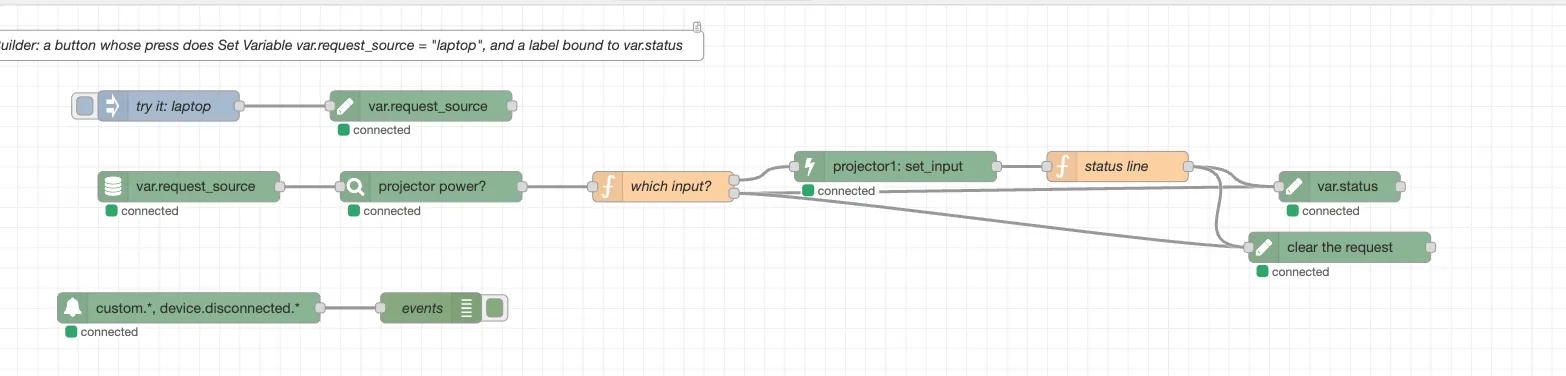
Two more examples sit beside it. fire-a-trigger is the reverse direction: the flow decides a meeting has started and emits an event, and a macro with an Event trigger does the sequence. macros-do-the-sequences is the shape most spaces want: the flow decides when, OpenAVC’s own system_on and system_off macros do the warm-up and shut-down, and a catch node puts a failure on the panel. Each tab’s description says what to set up on the OpenAVC side.
Install the nodes
In Node-RED, open Manage palette › Install and search for @open-avc/node-red-openavc, or in your Node-RED user directory run:
npm install @open-avc/node-red-openavcYou need Node-RED 4.0 or later and OpenAVC 0.33 or later. Node-RED can run anywhere that can reach the OpenAVC system: the same computer, a server in the rack, a container.
Connect to a system
Drag any OpenAVC node onto a flow, open it, and add a new openavc-server. Enter the host and port you open the Programmer on (192.168.1.50 and 8080, say). Tick HTTPS if the system has it turned on; leave Verify the certificate off unless the system has a cloud-issued or company certificate. Then deploy.
With no API key, the connection joins the system the way a panel does. It can read all state, send device commands, run and cancel macros, write var.* and plugin.* variables, and emit custom.* events. That is everything a flow needs to be the room’s logic.
With an API key, the connection joins as the Programmer: everything above, plus writing any state namespace and hearing every event on the bus. Generate a key in the Programmer under Settings › Access (a key needs a Programmer password set as well). It is stored as a Node-RED credential and never shown in the browser again.
All the nodes on one server share a single connection, and it reconnects on its own if the system restarts or the network drops. Two systems in one flow are two server nodes.
Announce as (optional) gives the connection a name, lobby-logic say. While it is connected, OpenAVC holds system.integration.lobby-logic.connected at true; when it drops, false. That key is how the room can tell whether the flow is there (see below).
The nodes
| Node | What it does | Message |
|---|---|---|
| state in | Sends a message every time a matching state key changes. Patterns like var.* or device.projector.*; * matches anything. Can replay current values when the connection opens. | topic is the key, payload the value |
| state get | Reads what a key holds right now, when a message arrives. A pattern gives every matching key and value. | topic is the key, payload the value (or where you point it) |
| event in | Sends a message for every matching event: custom.*, ui.press.*, device.disconnected.*, macro.completed.*. | topic is the event, payload what came with it |
| command | Sends one command to one device and answers when the device accepts or refuses it. | payload.success, payload.error |
| macro | Runs a macro and answers when it has finished, however long it takes, or cancels one that is running. | payload.success, payload.error, payload.step_errors, payload.cancelled |
| set variable | Writes a value to a var.* key. Every panel control bound to it updates. | payload.success, payload.error |
| emit event | Emits a custom.* event inside OpenAVC, which fires an event trigger or a script’s @on_event handler. | payload.success, payload.error |
Every node’s help, the book icon in the editor, says what goes in on the message and what comes out. The device, command, macro and key fields fill their lists from the system, so you pick rather than type. That needs the server node deployed first; the dialog says so if it is not.
A command or macro that fails puts the reason on payload.error in the same words OpenAVC’s own panel would show, and raises an error a catch node can pick up, so a flow can react or just log it. A macro that finished with a failed step (macros carry on past a failed step unless set to stop) answers success: true with the failures listed in payload.step_errors.
To send a command to every device in a group, run a macro with a Group Command step, or send the command once per device.
Events in both directions
State is what a room is; an event is something that happened. A flow can listen for both and cause both.
Listening. An event in node on custom.* hears every Emit Event action on a control and every Emit Event step in a macro. On ui.press.* it hears every button press on every panel, with the element id as the last part of the name. On device.disconnected.* it hears a device drop off.
Causing. An emit event node fires an event inside OpenAVC. A macro with an Event trigger on that name runs, and reads the payload as $trigger.<field>; a script’s @on_event handler runs and reads it as event.payload. Names are always under custom.; the node adds the prefix if you leave it off. This is how a flow hands work back to a macro: the flow decides, the macro does the sequence.
The script editor marks a custom. handler that nothing in the project emits. If a flow is what emits it, that mark is telling you what the script depends on.
Without the nodes
Everything the nodes do is ordinary API usage, so Node-RED’s built-in nodes reach OpenAVC too:
- An http request node with an
X-API-Keyheader calls any REST endpoint:POST /api/devices/{id}/command,POST /api/macros/{id}/execute,PUT /api/state/var.status,POST /api/events. - A websocket client node on
ws://host:8080/ws?client=panel&events=custom.*receives the live state stream (state.snapshot, thenstate.updatebatches) and the events named, and can sendcommand,macro.execute,macro.cancel,state.setandevent.emitframes. Add anX-API-Keyheader to the node to connect as the Programmer. - The MQTT Bridge plugin publishes chosen state keys to a broker and accepts commands back, which Node-RED’s MQTT nodes speak natively.
The nodes exist because a flow should hold one socket rather than make HTTP calls (the REST API allows a few calls a second; the socket allows hundreds), and because picking a device from a list beats typing its id.
If Node-RED stops
A flow that has become the room’s logic is part of the room. If Node-RED is down, a button that only sets a variable still sets it, and nothing answers. Three habits keep that from being a surprise:
- Give the server node a name under Announce as, then use the key it publishes: bind an LED on the panel to
system.integration.<name>.connected, add it as a monitored reading so the Dashboard and a cloud alert say when the flow is gone, or put a State Change trigger on it that runs a fallback macro when it turnsfalse. - Keep the sequences that must always work, System On and System Off at least, as OpenAVC macros, and have the flow call them with a macro node rather than replace them.
- Run Node-RED where it restarts on its own (a service, a container with a restart policy), on the same network segment as the system.
Inside the flow, every OpenAVC node shows the connection on its status dot, and a status node turns those changes into messages, so the flow itself can react when the system goes away or comes back.
Troubleshooting
- The device or macro list is empty. Deploy the server node first; the lists come from the system through its connection.
- The dialog says the system asks for an API key before it will list this. The system has a Programmer password, and the server node has no key. Devices and state keys still list; commands and macros need the key. Add it to the server node, or type the id.
- Every node shows “disconnected: the server refused the API key”, and the Node-RED log says the same. The key is wrong or was regenerated. Paste the current one from Settings › Access.
- HTTPS is on and the connection never opens. Untick Verify the certificate for a self-signed certificate. For a certificate signed by your own company CA, keep it ticked and add a TLS configuration on the server node with the CA certificate in it.
- A
set variablenode is refused. Without an API key, onlyvar.*andplugin.*keys can be written. Device state is written by the device’s driver, never by hand. A message that does not carry the property the node reads (msg.payloadby default) is refused too, rather than written asnull. - An
emit eventnode is refused. Events from outside are alwayscustom.<name>. The node adds the prefix; something else namingdevice.orcloud.events is refused on purpose. - A
macronode answers “macro skipped”. The macro’s own overlap or cooldown setting turned the start away because a run was already going or had just finished. That is the macro doing what it was told; the flow now knows. - An
event innode shows “needs an API key for plugin.*”. Without a key the connection hearscustom.,ui.,device.,macro.andsystem.events; add the key to the server node for the rest. event inshows “OpenAVC too old for events”. The system is on a version before 0.33, which had no event stream. State, commands, macros and variables still work; update the system for events.- A request answers “Rate limit exceeded”. The connection sent more than 200 messages in a second, which a loop in the flow does. The request is refused, not queued; find the loop.
See Also
- Variables and State. The state keys a flow reads and writes.
- Macros and Triggers. Event triggers, and
$trigger.<field>. - UI Builder. The Set Variable and Emit Event actions on a control.
- Network and Security Guide. Ports, the API key, and what a panel-posture connection may do.